For MuseScore users
From MuseScore to Maestro
Maestro opens MuseScore 3 and 4 files directly, without going through MusicXML: staves, notes, markings, text and layout become a Maestro document, ready to edit. And it’s free, for Mac and Windows.
In three steps
Bring your scores into Maestro.
- 1
Download Maestro
For Mac (macOS 13 Ventura or later) or Windows 10 and 11. It’s free, with no limits and no account.
- 2
Open the .mscz file
With File → Open…, or by dragging it onto the window. You don’t need MuseScore installed: Maestro reads the file on its own. Uncompressed .mscx files work too.
- 3
Check and save
If something wasn’t imported, Maestro tells you right away. Then save the score as a Maestro document (.maestro).
Got files from MuseScore 2 or earlier? Maestro can’t read them: open them in MuseScore 3 or 4 and save them again, then open them in Maestro.
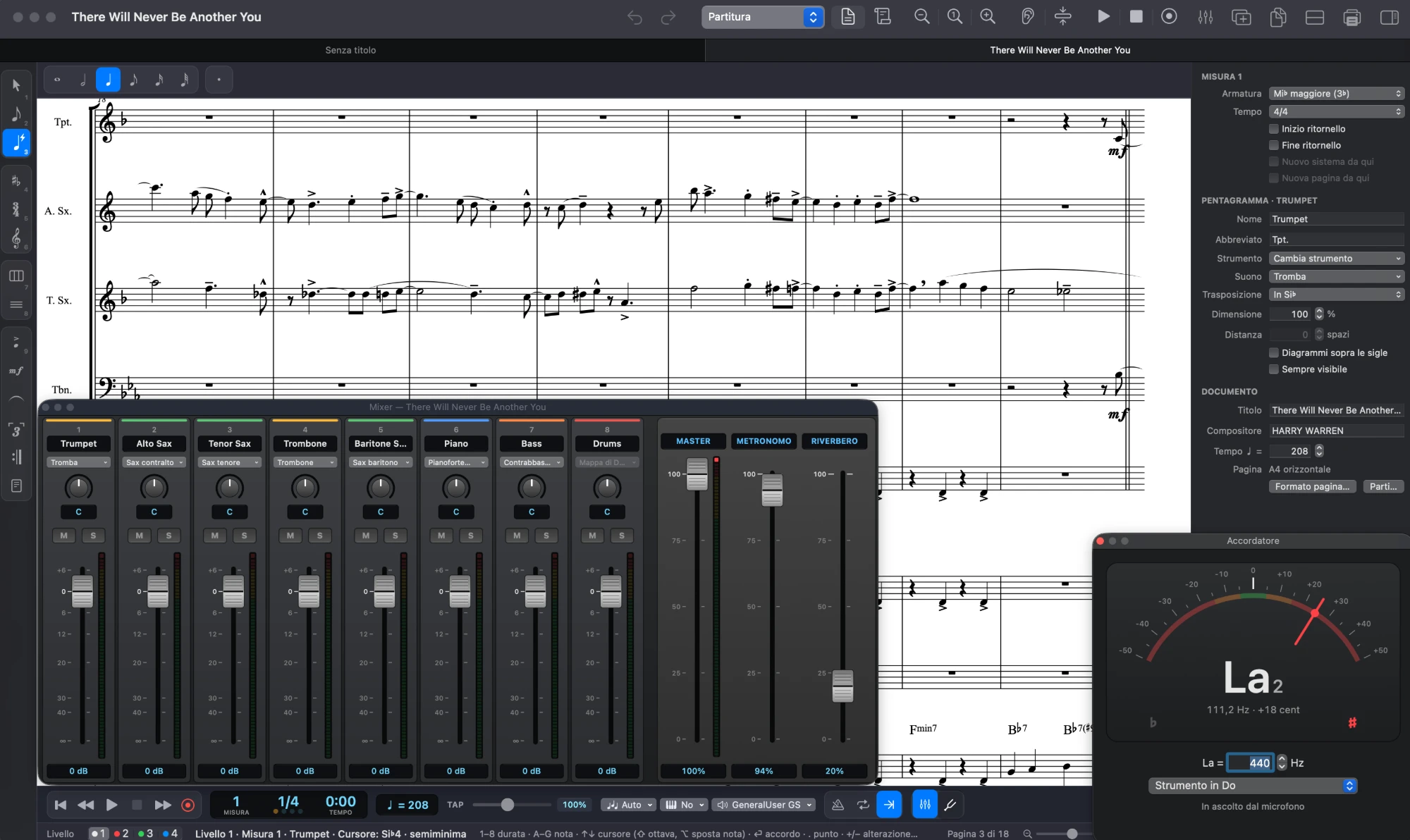
Where things are
What you used in MuseScore, in Maestro.
Maestro follows Finale’s habits, but many ideas are the same as in MuseScore, sometimes with the same keys. On Windows ⌘ and ⌃ become Ctrl, ⌥ becomes Alt.
From the .mscz file
What comes across, and what to check.
Maestro reads scores saved by MuseScore 3 and 4, including page size and system and page breaks. Anything it can’t import yet is listed in a message as soon as the file opens.
Comes into the score
- Staves and names, transposing instruments, drum kit and tablature
- Clefs, key signatures, time signatures and pickup measures
- Notes, chords, rests and all four voices
- Tuplets, nested ones too, and grace notes
- Articulations, dynamics, slurs, hairpins, octave lines and glissandos
- Text lines, metronome marks and rehearsal marks
- Chord symbols and lyrics with their verses
- Repeats, endings, segno, coda and jumps
- Measure repeats and slash notation
- Braces and brackets, page size, system and page breaks
Worth checking
- Fingerings, guitar chord diagrams, two-note tremolos and instrument changes aren’t imported: the message tells you how many there are.
- Parts are rebuilt from the score: changes made only in MuseScore’s parts don’t come across.
- The score opens in Maestro’s music font; for MuseScore’s look, choose Leland in Document → Fonts….
- Beaming, spacing and the placement of markings follow Maestro’s rules, not MuseScore’s.
- Measures of irregular length follow the time signature.
Frequently asked questions
Before you switch.
I only have the PDF of the score: can I open it?
Yes, if the PDF was exported from a notation program (MuseScore, Finale, Sibelius, Dorico, LilyPond, Maestro…): open it with File → Open… and you get the notes, lyrics, chord symbols and dynamics, with the original PDF alongside on the Mac. For scans there is File → Import Scanned Score….
Do I need MuseScore installed?
No. Maestro reads .mscz and .mscx files on its own, even on a computer without MuseScore.
Do I have to export to MusicXML first?
No: open the .mscz file directly. MusicXML is still handy for MuseScore 2 files you can’t re-save, and for moving scores to and from other programs.
Can I save as .mscz?
No: Maestro saves in its own format (.maestro). To take a score back to MuseScore, use File → Export MusicXML… and open the file in MuseScore.
Does it work on Windows?
Yes. MuseScore import is the same on Mac and Windows, and a score saved on one opens on the other.
Is Maestro really free?
Yes, with no limits, no subscription and no account. It updates itself when a new version comes out.
Can I use MuseScore’s sounds?
Yes. MS Basic, the MuseScore 4 bank, and MuseScore General download with one click from Download Sounds…, and the .sf3 SoundFonts you already have are added like any other: Maestro converts them to .sf2 the first time.
Open your first MuseScore score.
Download Maestro, open a .mscz file and pick up where you left off.